Unblock Security Websites which are Blocked by Viruses/Worms

Have you ever been unable to get access to security websites?. This is one of the symptoms that your Computer is virus infected. You can't access to browse Security sits like McAfee, Symantec, Microsoft etc and you can't update your Security Software. So how can you get access to those Websites to remove computer viruses. Here is a simple solution, just follow the instructions:

  1. Go to Run from Start Menu (or Press Windows Key + R )
  2. Type CMD to open Command Prompt.
  3. Now type NET STOP DNSCACHE and press ENTER button. If you type correctly and command work correctly, you will see " The DNS Client Service was stopped successfully". If you don't see any line like this then try this command accessing your computer as an Administrator

    Type the command as the word in the red circle box

    .
  4. This command stop your DNS client services. Most viruses or worms use DNS Client Services  to block security websites to update your Security System software.
  5. Now you can update your Antivirus Software accession Security Sites and remove threads from your Computer.
  6. To start 'DNS Client Service' again you have to type NET START DNSCACHE in the command prompt and then press ENTER. Start this services after virus removal.

  7. Type the command as you see in the red circle box

Hope this tips help you and your Computer will be protected from threads. If you like then leave your comments below.


This article is provided by:
Mohammad Al-Amin 'Nirob'
E-mail: alamin.nirob@gmail.com
*Full credits of this article goes to him
Read more...

Funny Windows 7 ads from Microsoft Switzerland

Microsoft always say "We designed Windows 7 to simplify your everydays tasks". To explain and clarify this they releases new ads recently from Microsoft Switzerland. This ads give some clue what exactly Microsoft means by saying simplifying everyday tasks. Watch and enjoy:


Read more...

Get Windows 7 iconized taskbar in your XP, Vista

Windows 7 Taskbar has great features. One of them is the Taskbar does not show text in the application buttons, only show their icons. This is totally nice looking when you have many windows opened at the same time. This feature also saves space in Taskbar area. If you want to have the same feature in Windows XP or Vista then you can get it easily just following the steps below:


  • Go to RUN and type regedit and press Enter. It will open Registry Editor. Now go to the Key:
HKEY_CURRENT_USER\Control Panel\Desktop\WindowMetrics

  • In right-side panel, create a new String value MinWidth and set its value to -255


  • That's it. Now Restart your computer and get ready to have iconized taskbar in your Computer.
  • To get the default Taskbar as it before delete the MinWidth String value and restart you computer.

If you don't want it following the above process then you have an alternative way just downloading the follwing Zip file.


Ifter downloading it run the Install.reg file. It will ask you for confirmation, accept it and the Taskbar will change automatically if it does not work then please restart your computer. I hope it will work.
Read more...

A close look of Windows 7 Taskbar

Microsotf's new operating system Windows 7 has a great change in its taskbar with awesom features. The Windows 7 Taskbar is a new application-launching and window-switching mechanism that combines the functionalities from previous Windows OS Desktop mechanisms such as Quick Launch, Recent Documents, Notification area icons, desktop shortcuts, and running application windows.

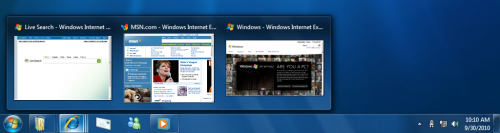
New windows 7 taskbar offer Thumbnail Overview, AeroPeek, overriding the default Thumbnail icon, and surfacing tabs and documents from a Multi Tab or Documents Interface.Below is the screenshot of Windows 7 taskbar.


Taskbar display only icons and no names which is a different approach than previous.


It is possible to change the order of each icon in the taskbar which is definitely most interesting for us.

If you want to pin a application at a certain postion in the taskbar then it is also possible so that you will find it available alwayse in the same spot which was possible only in Quick launch area in previous version of OS.

Simply a right-click on an icon in the Taskbar will open a list called Jump Lists. This is aslo so interesting feature for new Taskbar.  This lists offer you to access to the last used files, documents or websites you visited. Jump List also contain playing all music tracks or resuming a playlist.


System Tray of Taskbar is also in new face. After installing windows 7 only four icons are displayed named as Volume, Power, Network and Action Center. Notifications are suppressed by default but can be changed in the options just right-clicking on that. User can change icon status in the system tray from the options.


A new feature called Aero Peek is awesome really. If you moves mouse over that panel all open windows become transparent making the desktop shine through but right clicking on it will show the desktop again. When you hoevering mouse over it the Aero Peek is then in effect.

You can also change the color of Taskbar and its transparency levels too. we hope more new feature come with the final release of Windows 7
Read more...
previous home